



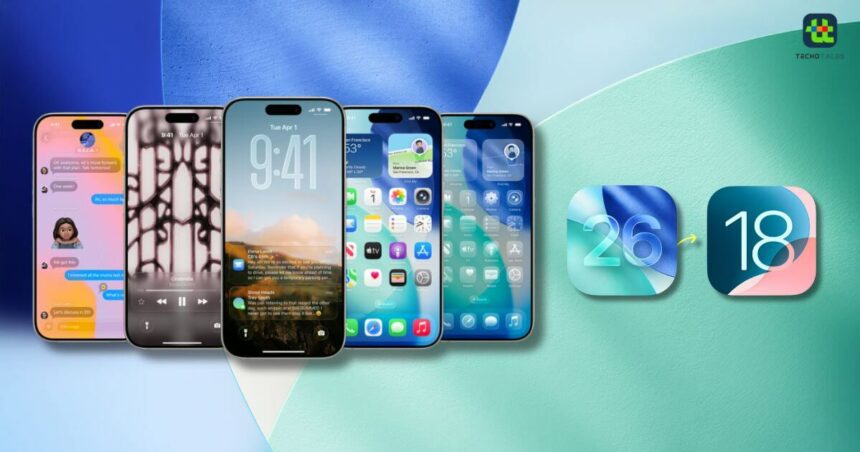
Excited about iOS 26? Are you one of those Apple enthusiasts who jumped on the iOS 26 beta bandwagon and ended up with lots of bugs and frustration? You are not alone. The excitement of testing Apple’s latest features can quickly turn into regret when your daily-use device becomes unreliable.
Apple announced iOS 26 at WWDC 2025 in June, making it available to developers for testing purposes, with a public beta planned for July. However, early adopters are discovering that the beta software comes with its fair share of headaches.
Why Can Beta Software Be A Nightmare?
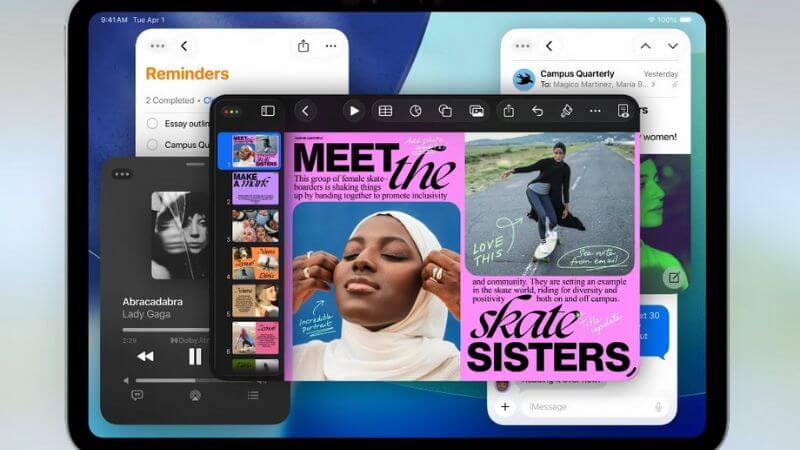
Like all beta software, the iOS 26 public beta is expected to include bugs and performance issues that can seriously impact your daily smartphone experience. Here is what many users are experiencing:
Common iOS 26 Beta Problems:
- Apps are crashing unexpectedly during regular use
- Battery draining faster than usual, sometimes within hours
- Random system freezes and restarts
- Incomplete features that don’t work as advertised
- Compatibility issues with third-party applications
- Slower overall device performance
Apple has already released a revised iOS 26 developer beta to address battery issues, which highlights the problems encountered in the initial release.
Who Should Consider Downgrading?
New iOS design #WWDC2025 #WWDC25 #AppleEvent pic.twitter.com/uDdJJ7QBNs
— Techotales (@techotales) June 9, 2025If you are experiencing any of the above issues on your iPhone or iPad, then now is the time to return to iOS 18. This is especially true if you use your device for work or important daily tasks.
Critical Warning: Apple Watch Users Pay Attention
Before you proceed with the downgrade, there is something extremely important you need to know. If you have updated your Apple Watch to watchOS 26, you will face a significant problem after downgrading your iPhone to iOS 18.
The Apple Watch Dilemma:
WatchOS 26 is here #WWDC25 pic.twitter.com/sIcojl0v9o
— Techotales (@techotales) June 9, 2025- Your watchOS 26-equipped Apple Watch will not pair with an iPhone running iOS 18
- Apple doesn’t allow users to manually downgrade watchOS versions.
- The only way to downgrade your Apple Watch is by sending it to Apple Support.
- This process can take days or weeks and may involve service fees.
This means you might have to choose between using your iPhone with iOS 18 or keeping your Apple Watch functional. It is a tough decision that many users wish they had considered before updating both devices.
Step-By-Step Guide To Return From iOS 26 To iOS 18
Before starting the downgrade process, gather the following things:
- A computer (Mac or Windows)
- Lightning cable or USB cable
- Stable internet connection
Method 1: Using Computer Restoration
Start by connecting your iPhone or iPad to your computer using the appropriate cable. If you are using a Mac, open Finder. Windows users should launch iTunes.
Recovery Mode:
The process depends on your device:
More Read

- For iPhone XS and newer models: Quickly press and release the volume up button, quickly press and release the volume down button, then press and hold the side button until you see the recovery screen with the Apple logo.
- iPads with Face ID: Quickly press and release the volume up button, quickly press and release the volume down button, hold the button until the device restarts, and continue holding until recovery mode activates.
Restore Your Device:
While recovering your iPhone, your computer will send you a pop-up message asking if you want to restore the device. Click on Restore to begin the process.
Wait For Completion:
The restoration process typically takes 15 to 30 minutes. Your device will download and install the latest version of iOS 18. Do not disconnect your device during this time. It could cause a serious problem.
Set Up Your Device:
After the restore is complete, you will have two options:
- Set up as a new device
- Restore from a backup made when you were running iOS 18.
Method 2: Stop Receiving Betas
To stop receiving betas, go to Settings, then click on Software Updates. You will see Beta Updates — click and turn it off. However, this only prevents future beta updates and doesn’t immediately downgrade your current iOS version.
For most users who have major problems with the iOS 26 beta, downgrading to iOS 18 is definitely worth the short-term hassle. The effort spent on fixing your device cannot even compare to the reliability and stability you will be getting.
Remember: Beta software is not daily-use software; it exists to be tested, not used. It is exciting to test new functionalities as soon as possible, but other times, it is wise to wait until the mature, stable release is present and will not be a disturbance to your digital life.
Your iPhone or iPad should enhance your productivity and daily activities, not hinder them. If the iOS 26 beta is causing more problems, don’t hesitate to make the switch back to iOS 18. Your future self will thank you for prioritizing functionality over early access to new features.
Follow Us: Facebook | X | Instagram | YouTube | Pinterest