
By using this site, you agree to the Privacy Policy and Terms of Use.
Accept
TechotalesTechotalesTechotales
  • HOME
  • SMARTPHONES
  • BUSINESS
  • AI
  • AUTOMOBILE
  • TECHNOLOGY
  • TELECOM
  • WEARABLES
  • GADGET
  • TABLETS
  • FINANCE
  • APPS
  • TECH NEWS
  • GAMING
  • APPLIANCES
  • AUDIO
  • SOCIAL
  • LAPTOPS
  • CRYPTO
  • ABOUT US
  • DISCLAIMER
  • PRIVACY POLICY
  • CONTACT
  • TERMS OF USE
Copyright © Techotales | All Rights Reserved
Reading: Google Photos Me Meme Feature: Step-By-Step Guide To Create Personalized Memes
Notification Show More
TechotalesTechotales
  • HOME
  • SMARTPHONES
  • BUSINESS
  • AI
  • AUTOMOBILE
  • TECHNOLOGY
  • TELECOM
  • WEARABLES
  • GADGET
  • TABLETS
  • FINANCE
  • APPS
  • TECH NEWS
  • GAMING
  • APPLIANCES
  • AUDIO
  • SOCIAL
  • LAPTOPS
  • CRYPTO
Follow US
  • ABOUT US
  • DISCLAIMER
  • PRIVACY POLICY
  • CONTACT
  • TERMS OF USE
Copyright © Techotales | All Rights Reserved.
Techotales > Blog > Apps > Google Photos Me Meme Feature: Step-By-Step Guide To Create Personalized Memes
AppsTechnology

Google Photos Me Meme Feature: Step-By-Step Guide To Create Personalized Memes

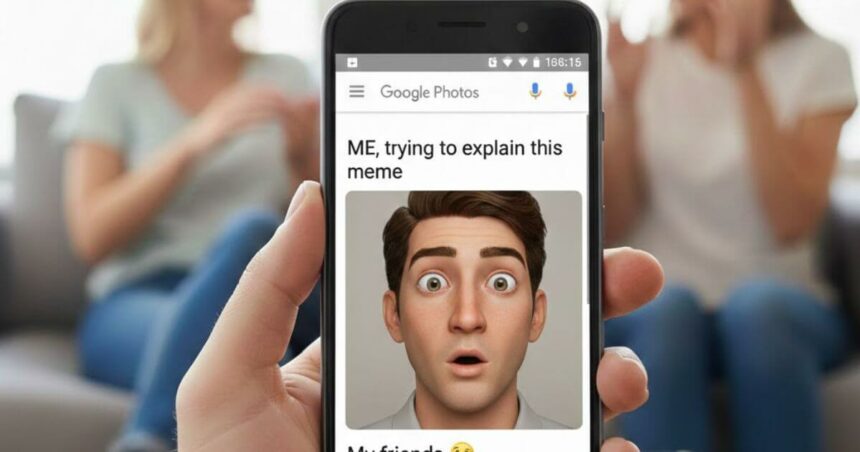
Google Photos’ Me Meme feature turns your personal photos into AI-generated memes instantly.

Prateesha Singh
Last updated: February 24, 2026 10:03 PM
Prateesha Singh - Content Writer
Share
Google Photos Me Meme Feature
SHARE

Memes rule the internet today. They’re everywhere on Instagram, WhatsApp, X, and Facebook. But making your own meme usually means downloading apps, learning editing tools, or using complicated websites. Google is making meme creation easier than ever with a new feature, ‘Me Meme’ inside Google Photos. Instead of relying on third-party apps or complicated editing tools, users can now turn their own pictures into fun, shareable memes directly from their photo library.

Contents
  • What Is the Me Meme Feature?
  • How Does Me Meme Work On Google Photos?
  • Step-By-Step Guide: Creating Your First Meme
    • Getting The Better Results
  • Conclusion

Called “Me Meme,” this generative AI-powered tool aims to simplify meme-making for everyday users. With just a few taps, your photos can become social-ready content in seconds.

What Is the Me Meme Feature?

More Read

Gemini 2.0 Features
Gemini 2.0: Google’s New AI Is Twice As Fast – Here’s What’s New
Is DeepSeek AI Available In India? How To Download And Use It
Mappls Vs Google Maps: The Indian Navigation App Revolutionizing Driving With 3D Junctions And Trip Cost Calculator
What Is Moltbook? The AI-Only Social Platform Raising Serious Questions
Instagram Rolled Out New Multi-Audio Track Feature For Reels

Google has introduced a new feature called Me Meme in Google Photos. This feature allows users to turn their own photos into fun, personalized photo memes using generative AI. It is designed as a light-hearted tool to create share-ready content for friends and family. At present, the feature is available to users in the United States.

Instead of browsing meme generators online or struggling with photo editing software, you can now do everything directly in Google Photos. Pick a template, choose your photos, and you’re done.

How Does Me Meme Work On Google Photos?
Google Photos
Google

The process is simple. To create a meme, users need:

A template: Either from preset options or a custom image.

A photo of themselves from their Google Photos library.

The AI combines both to generate a meme-style image. The technology handles the hard work, blending your photo into the meme format, adjusting colors, and making everything look natural.

Step-By-Step Guide: Creating Your First Meme

Getting started takes less than a minute. Here’s what you need to do:

  • Step 1: Open the Google Photos app on your Android phone.
  • Step 2: Tap on “Create/Edit” at the bottom of the screen.
  • Step 3: Select “Me Meme” from the available options.
  • Step 4: Follow the on-screen instructions if you’re using it for the first time.
  • Step 5: Choose a meme template or upload a reference image.
  • Step 6: Select a clear photo of yourself.
  • Step 7: Tap “Generate” to create the meme.

After creating your meme, you can:

  • Save it to your device.
  • Share it directly with contacts.
  • Regenerate it for a different version.
  • Compare it with the original image.
  • Give feedback to Google.

Getting The Better Results

The feature is experimental, so results may not always be perfect. Clear, well-lit, front-facing photos give better results.

Here’s what works best:

  • Good lighting: Avoid dark or shadowy photos.
  • Clear faces: The sharper your image, the better the output.
  • Solo shots: Single-person photos work better than group pictures.
  • High quality: Use your best photos, not blurry screenshots.

Conclusion

Most of us aren’t graphic designers. We don’t know Photoshop or fancy editing software, but we still want to create fun, shareable content. That’s the gap Me Meme fills.

What once required editing skills or separate apps can now be done in seconds inside Google Photos. If you enjoy making memes for friends or social media, this feature turns your everyday photos into creative content with almost no effort.

Follow Us: Facebook | X | Instagram | YouTube | Pinterest

Samsung And Mahindra Launch Digital Car Key Feature For Galaxy Users In India
OpenAI Launches ChatGPT App Directory: Connect Canva, Adobe, And More Inside Chats
Google AI Pro And Google One Annual Plan Gets 50 Percent Discount: Here’s What You Pay
What Is Grok Imagine? xAI’s Brings AI Image And Video Creation To X
Gemini AI: Here’s How To Upload Files On This AI-Powered App

Sign Up For Daily Newsletter

Be keep up! Get the latest breaking news delivered straight to your inbox.
[mc4wp_form]
By signing up, you agree to our Terms of Use and acknowledge the data practices in our Privacy Policy. You may unsubscribe at any time.
Share This Article
Facebook Whatsapp Whatsapp Reddit Email
What do you think?
Happy0
Love0
Sad0
Surprise0
Angry0
ByPrateesha Singh
Content Writer
Follow:
I’m a passionate writer and a graduate with a natural talent for storytelling. I find joy in both reading and writing. My commitment to social work enriches my literary journey. My journey is driven by a desire to make a difference through words and action.
Previous Article Sony PlayStation 6 PS6 Sony’s PlayStation 6 Leak Hints At 30 GB Memory And Major Performance Upgrade

Stay Connected

21.5KLike
331Follow
789Pin
160Follow
- Advertisement -
banner banner
Create an Amazing Newspaper
Discover thousands of options, easy to customize layouts, one-click to import demo and much more.
Learn More

Latest News

Sony PlayStation 6 PS6
Sony’s PlayStation 6 Leak Hints At 30 GB Memory And Major Performance Upgrade
Gaming Technology
WhatsApp Latest Features Updates
How To Create Custom Stickers On WhatsApp Without Third-Party Apps: A Step-by-Step Guide
Apps Tech News
WhatsApp Group Message History
WhatsApp Introduces Group Message History Feature For New Members: Here’s How It Works
Apps Tech News
Samsung Bixby Smarter
Samsung Rolls Out Smarter Bixby Assistant In One UI 8.5 Beta
Tech News Technology
TechotalesTechotales
Follow US
Copyright © Techotales | All Rights Reserved.
  • ABOUT US
  • DISCLAIMER
  • PRIVACY POLICY
  • CONTACT
  • TERMS OF USE
Popup Newsletter Image Techotales
Join Us!
Subscribe to our newsletter and never miss out the details on latest launches, tech news, gadgets etc...
[mc4wp_form]
We do not spam, you can unsubscribe at any time.