

By using this site, you agree to the Privacy Policy and Terms of Use.
Accept
TechotalesTechotalesTechotales
  • HOME
  • SMARTPHONES
  • BUSINESS
  • AI
  • AUTOMOBILE
  • TECHNOLOGY
  • TELECOM
  • WEARABLES
  • GADGET
  • TABLETS
  • FINANCE
  • APPS
  • TECH NEWS
  • GAMING
  • APPLIANCES
  • AUDIO
  • SOCIAL
  • LAPTOPS
  • CRYPTO
  • ABOUT US
  • DISCLAIMER
  • PRIVACY POLICY
  • CONTACT
  • TERMS OF USE
Copyright © Techotales | All Rights Reserved
Reading: How To Change Default Apps On iPhone: A Step-By-Step Guide To Replace Safari To Chrome, Mail To Gmail, And More
Notification Show More
TechotalesTechotales
  • HOME
  • SMARTPHONES
  • BUSINESS
  • AI
  • AUTOMOBILE
  • TECHNOLOGY
  • TELECOM
  • WEARABLES
  • GADGET
  • TABLETS
  • FINANCE
  • APPS
  • TECH NEWS
  • GAMING
  • APPLIANCES
  • AUDIO
  • SOCIAL
  • LAPTOPS
  • CRYPTO
Follow US
  • ABOUT US
  • DISCLAIMER
  • PRIVACY POLICY
  • CONTACT
  • TERMS OF USE
Copyright © Techotales | All Rights Reserved.
Techotales > Blog > Apps > How To Change Default Apps On iPhone: A Step-By-Step Guide To Replace Safari To Chrome, Mail To Gmail, And More
AppsTechnology

How To Change Default Apps On iPhone: A Step-By-Step Guide To Replace Safari To Chrome, Mail To Gmail, And More

Tired of Apple's stock apps? Learn how to change default apps on your iPhone with iOS 18.2 or later in a few simple steps.

Sanjana Dhingra
Last updated: May 29, 2025 2:23 PM
Sanjana Dhingra
Share
Steps Change Default Apps On iPhone
SHARE

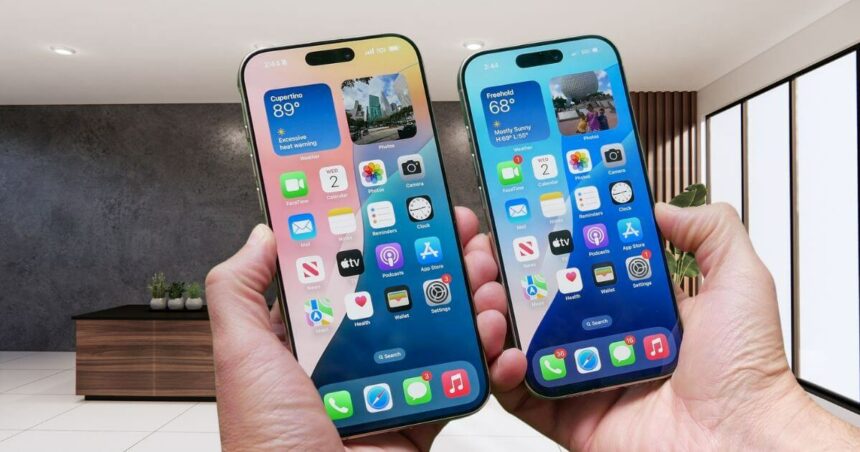
Are you bored with the built-in apps on your iPhone, like Safari Browser, Keyboard, Apple Mail app, and want to customize them? Now with iOS 18.2, you will get plenty of customization options, and a wide range of apps to switch from the Default apps, including third-party apps. Most iPhone users don’t know how to change or replace the Default apps on their iPhone. Don’t worry, we are here for you. Here is a step-by-step guide to replace default apps on iPhone..

Contents
  • Before iOS 14
  • How To Change Default Apps On iPhone?
  • Steps To Change Default Apps On iPhone
  • Switching Default Apps To Different Apps On iPhone
  • Conclusion

Before iOS 14

Earlier, iPhones had this limitation of the inability to change default apps, or we can say it was hidden. Apple only wanted their apps to be used, like Apple Music instead of Spotify or Apple Maps instead of Google Maps, and so on. Previously, you could use other apps, but you had to download and change the app’s settings within the app to make it the default on your iPhone. But if you want to make those apps ‘default’ and use them directly when you click any link instead of those Apple apps, then the process has become streamlined, and you can do it with iOS 14.

How To Change Default Apps On iPhone?
iPhone 16 iOS18
X/Techotales

More Read

Canva Craft
Canva Launches Craft, Its First In-House AI Image Generation Model: Features, Access And How It Works
Google Play Store Gets Vibe-Coded Apps, AI App Comparisons And Game Finder
OPPO ColorOS 17 Launched In India: New AI Features, Supported Phones And Rollout Schedule
Apple Pay Launched In India: How To Add Your Card, Make Payments And Check Supported Merchants
JioShield Launched For Families At Rs 1,000: Check Safety Features And Recharge Benefits

To use apps like Chrome, Gmail, and Google Maps as your default apps on iPhone, there is a feature in iOS 14. Although it was limited to some apps only, like Chrome and Gmail. As of now, iOS 18.2 and later versions offer a wide range of apps that you can set as default, including third-party apps for various categories like email, messaging, calling, browsing, call filtering, contactless apps, keyboard, and even password settings. So, you just need to have iPhone iOS 18.2 or later versions, and you are good to go to change apps in various categories, unlike earlier versions. Let’s know how to do it. Here are some steps on how to change default apps on your iPhone.

Steps To Change Default Apps On iPhone

  • Step 1: Open the Settings app on your iPhone (iOS 18.2 or later is required)
  • Step 2: Now, scroll down to the bottom of the app, and you will see the App button there
  • Step 3: Click on the App button
  • Step 4: Now, there will be an option of Default Apps on the top, click on it
  • Step 5: Now you will see different categories like Messaging, Password and Codes, Translation, Email, Call Filtering, Keyboard, etc.
  • Step 6: Click on the category in which you want to make the change. For instance, if you want to change Apple Mail, then click on the Email section.
  • Step 7: Now set your compatible third-party app, which you want as default, like Google Maps for navigation, Gmail for email, WhatsApp for video calling, Chrome instead of Safari for browsing, etc. Ensure that the app is already installed on your phone.

Switching Default Apps To Different Apps On iPhone

In the section Default Apps in your settings, you’ll find many categories in which you can make changes and customize apps, so let us know a little more about that.

Keyboards: To change default keyboards like Gboard, Grammarly for translation, and other activities.

Email: To change the default app for sending and receiving emails. If you click a link, it will open the app, say Gmail, Outlook, etc., that you have set as default.

Messaging: To change the default app for sending and receiving messages. You’ll likely see apps like WhatsApp, Telegram, etc.

Calling: To change the default app for calling. For instance, you can use WhatsApp for calling instead of FaceTime.

Call Filtering: To turn on or off call blocking and identification abilities for third-party apps.

Browser App: To change the default app to open links on the web from Safari to another app.

Passwords and Codes: Enable or disable “Autofill Passwords” for apps and websites, as well as toggle password and code verification with other apps.

Conclusion

So that’s how you can finally ditch those inbuilt Apple apps and set your favorite third-party ones as default on your iPhone. Whether it’s using Chrome instead of Safari, Gmail over Apple Mail, or even WhatsApp for video calls, iOS 18.2 gives you the freedom to customize your device your way. Just make sure your iPhone is updated, and the apps you want are already installed.

Go ahead, make your iPhone truly yours! And for more such easy tech guides, business, finance news, and updates, don’t forget to follow Techotales.

Follow Us: Facebook | X | Instagram | YouTube | Pinterest

Sign Up For Daily Newsletter

Be keep up! Get the latest breaking news delivered straight to your inbox.
[mc4wp_form]
By signing up, you agree to our Terms of Use and acknowledge the data practices in our Privacy Policy. You may unsubscribe at any time.
Share This Article
Facebook Whatsapp Whatsapp Reddit Email
What do you think?
Happy0
Love0
Sad0
Surprise0
Angry0
Previous Article Android 16 Features Android 16 Release Date, Features, And Eligible Devices List Revealed
Next Article Leela Hotels IPO Leela Hotels IPO: Allotment, Price Band, Subscription Details And Market Debut

Stay Connected

21.5KLike
331Follow
789Pin
160Follow
- Advertisement -

							banner							
							banner
Create an Amazing Newspaper
Discover thousands of options, easy to customize layouts, one-click to import demo and much more.
Learn More

Latest News

OPPO Find X10 Vs Find X10 Pro Max
OPPO Find X10 Vs Find X10 Pro Max: Price, Features And Key Differences
Smartphones
Claude
Anthropic Launches Claude Duet AI Agent That Works In The Background
Artificial Intelligence
Jio Platforms IPO Opens
Jio Platforms IPO 2026: ₹30,213 Crore India’s Biggest-Ever Public Issue Opens At ₹1,065 – ₹1,119; Listing Date And Key Details
Finance
Axis Bank Freecharge RBI approval
Axis Bank’s Freecharge Gets RBI’s In-Principle Approval For Payment Aggregation
Finance

Trending On Techotales

Google Gemini Call For Me
Technology

Google Gemini Can Now Make Calls On Your Behalf: Here’s How Call For Me Works

7 Min Read
Meta One Subscription India
Social

Meta One Subscription Launched In India: Brings Instagram, Facebook And WhatsApp Plus Into One Plan

7 Min Read
Instagram tagged posts
Social

Instagram New Feature Lets You Add Tagged Posts To Your Profile Grid

7 Min Read
iPhone 18 Pro and iPhone 18 Pro Max Launched
Smartphones

Apple iPhone 18 Pro, iPhone 18 Pro Max Launched In India With A20 Pro Chip And 48MP Cameras: Price, Specifications

7 Min Read
Previous Next
TechotalesTechotales
Follow US
Copyright © Techotales | All Rights Reserved.
  • ABOUT US
  • DISCLAIMER
  • PRIVACY POLICY
  • CONTACT
  • TERMS OF USE
Popup Newsletter Image Techotales
Join Us!
Subscribe to our newsletter and never miss out the details on latest launches, tech news, gadgets etc...
[mc4wp_form]
We do not spam, you can unsubscribe at any time.